Mac screen recorder features.
Give your video direction.
A Mac screen recorder and editor for product walkthroughs, tutorials and quick explanations. Bring attention to the detail that matters, then frame the result for wherever it will be watched.
App preview · Public download coming soon
Record a new take. Or start with a clip.
Capture your screen on your Mac, or import a local video you already have. A recording transferred from your phone can become a vertical demo without recording the whole thing again.
Record a short test before a longer take to check framing and your selected audio sources. Our guide to recording on Mac with audio explains the difference between microphone sound and audio from an app.
Give the important detail a close-up.
Automatic zoom uses activity captured during an app recording to bring smaller details into view. Adjust zooms on the timeline when you want to direct the movement yourself. Cursor styling and click effects help viewers follow your actions.
Imported video does not include the cursor activity captured by the app. You can still edit its framing and presentation, but it will not gain that recording metadata simply by being imported.
Your camera, in the right place.
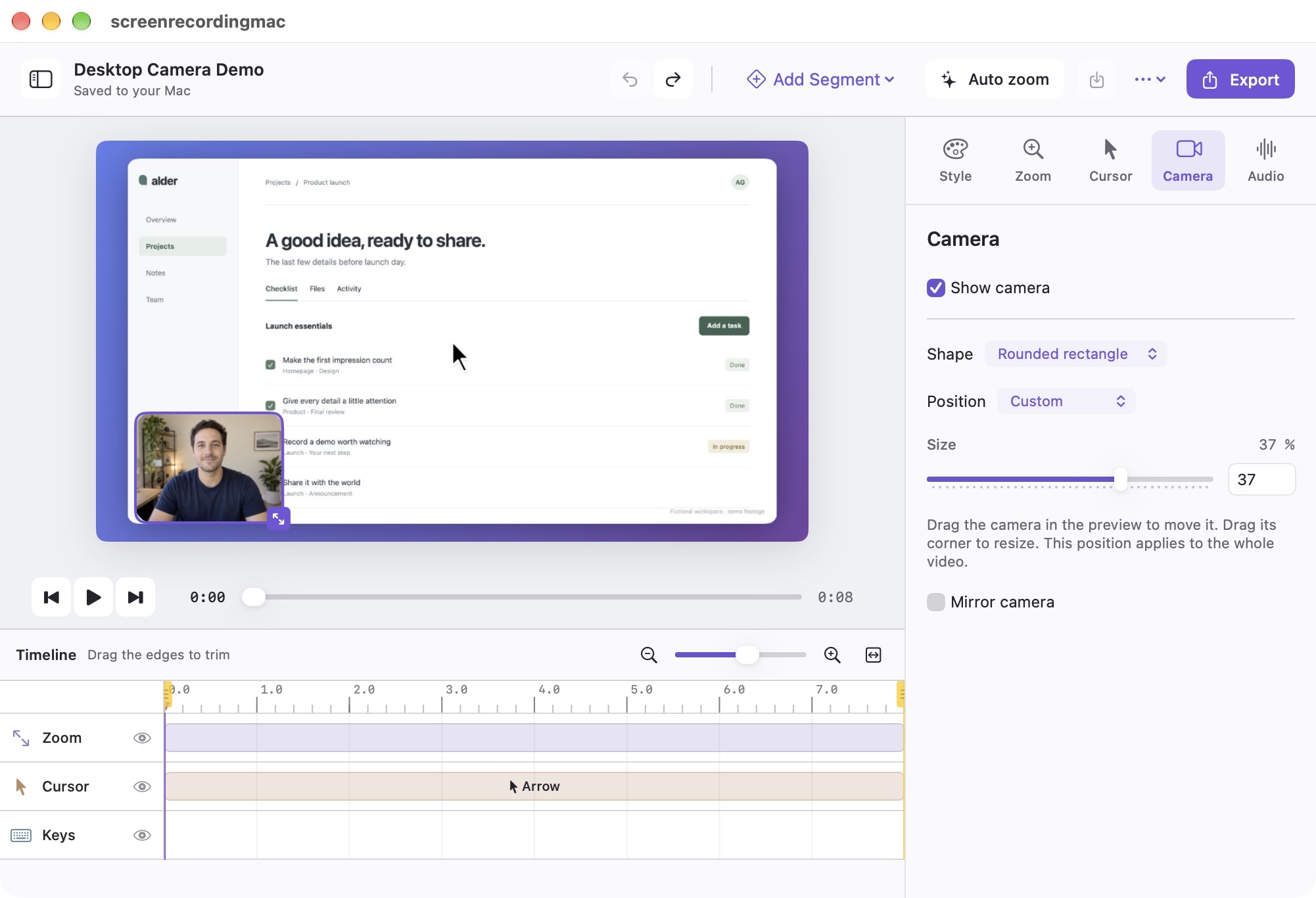
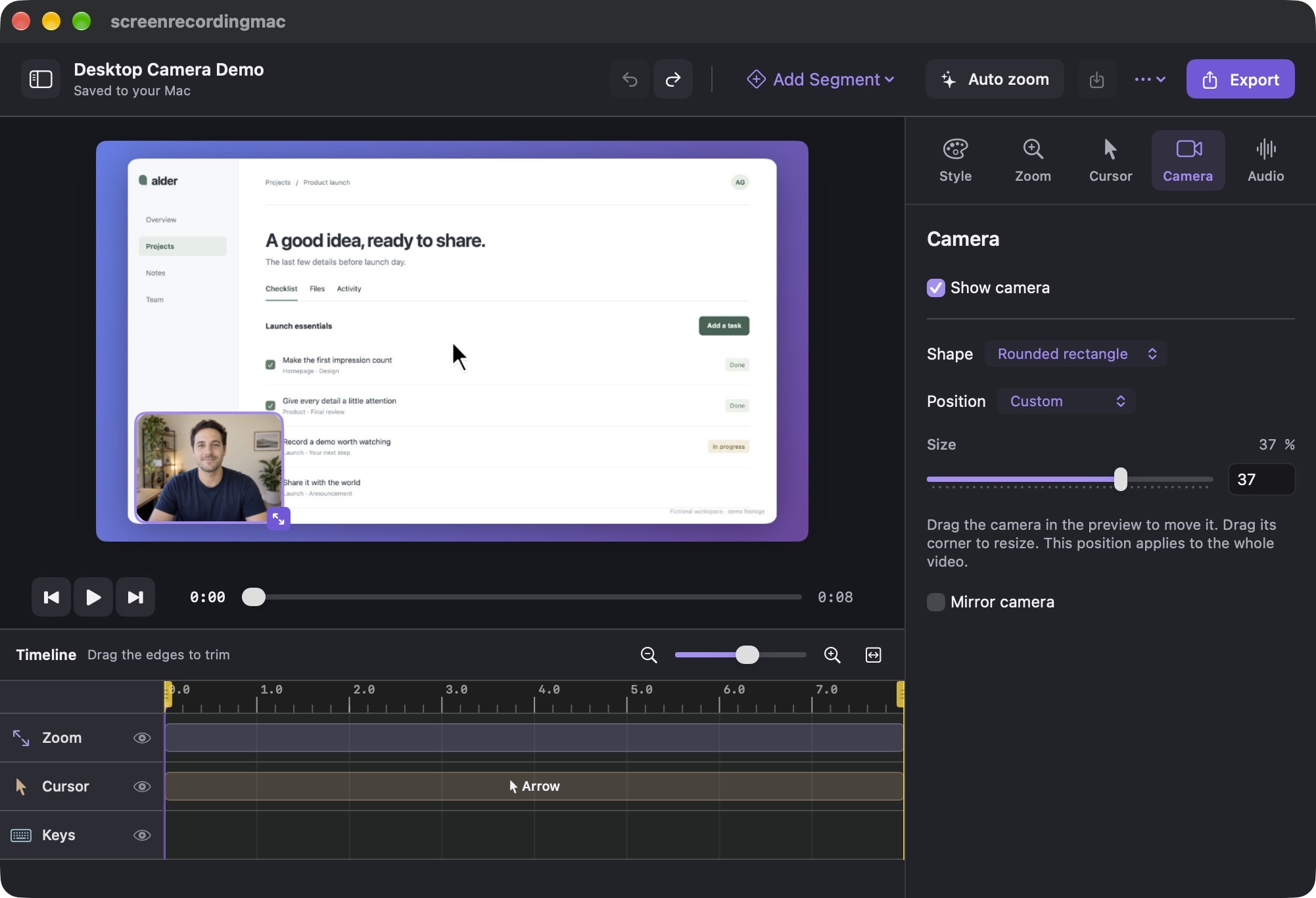
Desktop projects use a separate camera window. Choose a corner, drag it away from the part you are explaining and resize it on the canvas. Its saved position applies to the whole video, so the layout stays consistent.
Portrait projects can use a 50/50 top-and-bottom layout: your explanation in one half and the screen in the other. The split is reserved for portrait video, where both halves can use the width of a phone screen.
A canvas for a desktop or a phone.
Choose a landscape, square or 9:16 portrait canvas, then fit or fill your footage. Set a background and refine the frame before exporting. A tall clip can stay tall instead of sitting in the middle of a wide video.
Start with our vertical video and Reels guide for a practical phone-footage workflow. A guided iPhone Mirroring recording entry is also in development testing; paired-device capture still needs hardware verification.
Edit and export on your Mac.
Trim unwanted seconds, save an editable project and export an MP4 when the recording is ready. Capture, editing and rendering happen locally. The app does not need to upload your footage for these features to work.
The editor follows your Mac’s light or dark appearance. Source footage and projects stay where you save them; read how the app and website handle data.
See the output before you decide.
The desktop and Reel examples on our homepage are actual app exports. Their fictional presenter and narration were made separately. AI voice generation, AI presenters and automatic captions are not features of the app.
Make your next explanation clearer.
The app is in preview while we finish release testing. Check compatibility and hear when the trial is ready.
Check download status